
Python – a general-purpose programming language that can be integrated to run websites and applications.
To add a Python project, follow these steps:
Add a Python project
Add your Python project to the created site by doing the following:
- In the Main menu select Sites.
- Select the required site and click on the Website files button.
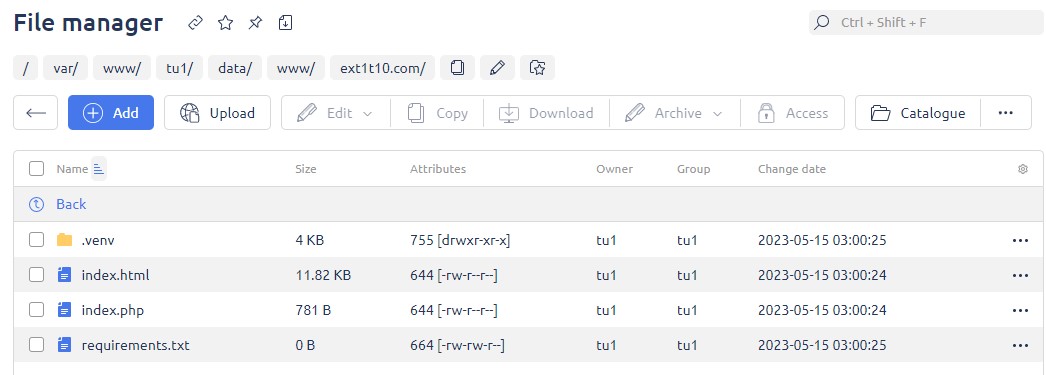
- On the File Manager form that opens, click Upload.
- Select where you want to upload the files from:
- Local computer file – click on Choose file or move the necessary files to the drag-and-drop area
- File URL on remote server:
- URL – a link to the file to be uploaded, for example, http://example.com/dir/file.html
- File name – the name of the file to be saved with in the current directory. If you leave this field blank, the file name will be extracted from the URL
- Specify the required packages in the requirements.txt file.
- Click on Back to the list of websites arrow.
- Click on “…“ and select Installing Python packages.
Python will install all the specified packages of your project. The installation process is indicated by a gray Python icon in the Parameters column. - After installation is complete, click on the “…“ button and select Restart (Python).
The project will be restarted; the Python icon will turn green, which means the project is working properly.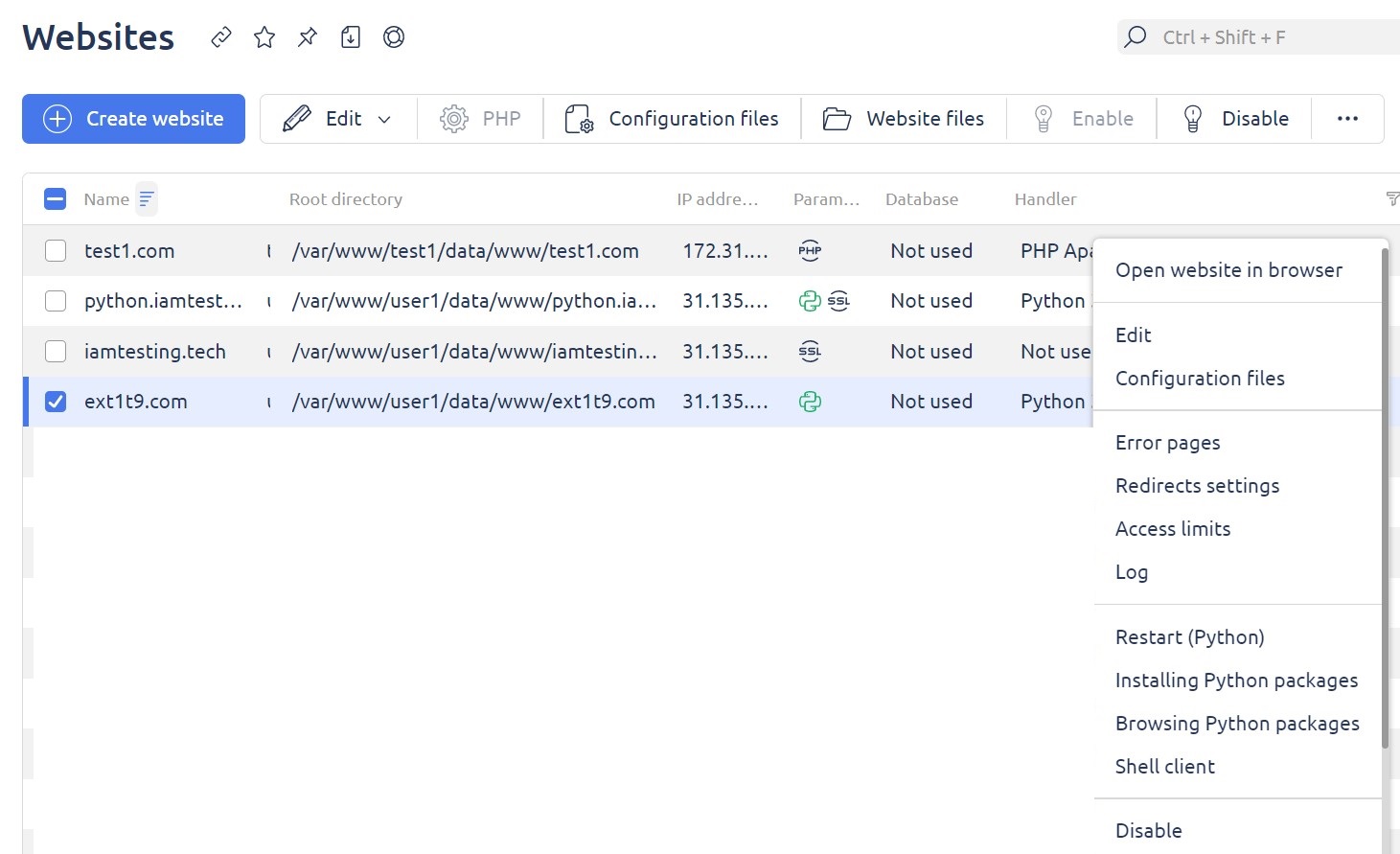
Functional check
To check if it works:
- If the Unix family OS is installed on the PC, add the following entry to the /etc/hosts file:
1.1.1.1 example.com-
Where:
- 1.1.1.1 — is the IP-address of your server;
- example.com — the website name;
-
If Windows OS is installed on the PC, add the following entry to the C:\windows\system32\drivers\etc\hosts file:
1.1.1.1 example.comWhere:
- 1.1.1.1 — is the IP-address of your server;
- example.ru — the website name.
Enter the name of the website in your browser to check if it was created correctly.
Create a website for a project with Python
Now you need to create a site with a Python handler, to do this:
- In the Main menu select Sites.
- On the form that opens click Create website.
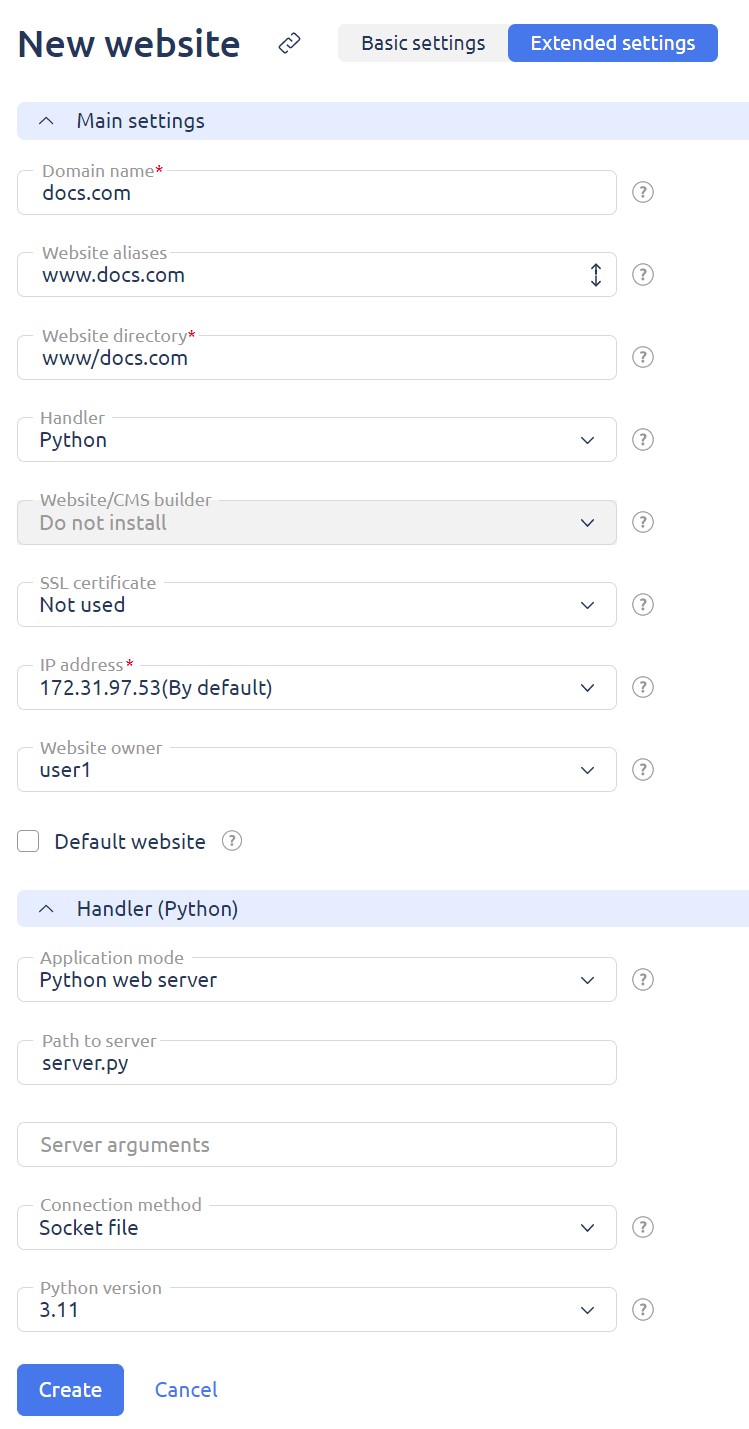
- Select the Extended settings tab (for a detailed description of the settings, see Add a website) and fill in the required fields. Below are the important fields when creating a website with a Python project:
- Main settings section:
- Domain name – the domain name
- Website directory – the path to the website directory that is relative to the owner's home directory
- Website aliases – the names of the aliases you want to add to your website (optional field)
- Handler – select Python
- SSL certificate – select an SSL certificate that will be used for this website. You can specify the existing certificate or create a new self-signed certificate
- IP address – a list of IP addresses assigned to the website
- Website owner – select the website owner
- Default website (checkbox) – if the website is marked as default, it will process a request by the domain name which is not registered on this webserver (including requests by IP) to any IP address assigned to this website
- Handler (Python) section:
- Application mode:
- CGI (Apache + Python) – Python interpreter is called by Apache2, the code will be executed by accessing the file directly
- Python web server– some Python packages need server configuration (for example, Django). Configure after the appropriate package is installed:
- Path to server – the path to the application server file relative to the home directory of the website
- Server arguments – list of arguments that will be passed to the server at startup
- Connection method (method selection is only available when Python Web Server mode is selected):
- Port – free unprivileged port will be assigned to the website
- Socket file – the website will work via a socket
- Python version – select the required Python version.
- Application mode:
- Main settings section:
- Click on Create.
On the Sites page, the created website will be added with the Python icon in the Parameters column.
Edit website
- 1. Change the Python version. You can change the version of Python used for your web project depending on your requirements and compatibility.
- Change the CGI mode (Apache + Python). Switching between CGI and Python execution modes in Apache environment and vice versa provides flexibility in web application management.
- Switch the application mode from socket to port and vice versa. The ability to switch between socket and port operation ensures application optimization and efficiency depending on project requirements.
- Change the handler to PHP, Node.js or disable it. You can change the handler to PHP, Node.js or disable it completely depending on your development needs and preferences.
Shell client
Shell client provides the ability to run additional Python, pip and other commands in the terminal. Shellinaboxd is started under the site owner. When the terminal is opened, the following actions are performed:
- Navigation to the website's home directory
- The path to the virtual environment for the selected site is added to the PATHvariable
To launch the shell client, press the Shell client button in the context menu of the chosen site.
Configuration files
Configuration files for Python applications include a requirements.txt file that pip uses to install dependencies. An example of such a file:
jinja2==2.11.3
jsmin==2.2.2
markupsafe==1.1.1
python-http-client==3.3.2
redis==3.2.1
The ecosystem.config.js file is available for editing configuration files in Python web server mode. To make changes, go to the Sites section, click Configuration files, and perform the necessary actions. The ability to edit these files is available to both administrators and users.